Thursday, March 22, 2012

Final Image Referencing Update

Evaluation for Assignment


Google Design
To finish off my Google logo I did the following:
Tennis player with tennis ball
and text next to him.
  • Inserted the words "London Olympics 2012" next to the tennis player in the same colour. 
  • Put a tiny little tennis ball in next to the tennis player a used the Ink Outlines filter to modify it so that I had used a filter in my design.
Challenges:
One of the most difficult things to do was to find an appropriate brush so that I could make the sweat look as realistic as possible. But once I found a good brush I was able accurately represent sweat of athletes working hard. 
Another challenge was trying not to edit the athlete silhouettes without them becoming so pixelated that it looks bad.
What the brush turned out like.
The end result
Likes and Dislikes:
The thing that I really like about my Google logo is the sweat because it looks so realistic that it is believable that it is sweat. There is nothing about thins Google logo that I dislike like because I have done everything to the best of my ability. 

Modifications to be
conducted:
I don't have any regrets about this Google logo and there is nothing I would change because I believe that this would look good if it was displayed on Google's page during the Olympics. I think that it is the simpleness of this that makes it attract your attention.       


Coke Billboard
The things that I did to put the finishing touches on my coke billboard included:
The font on my
Coke bottle.
  • Cutting out each individual letter from existing names on "share a Coke bottles and putting it onto my Coke bottle.
  • I changed the background to the sun rising over the horizon of the earth instead of a moon because it more attractive to the eye.
  • I had to use a filter so I selected the sun rising over the earth and used the Accented Edges filter to change it so it looked a bit better and so that I had used a filter in my design.
  • Then all I had to do was put it on to my bill board that I found (which was originally twice as long so I had to shorten it to fit my billboard.
  • The last thing I did was add "thank you for sharing" down the bottom of the billboard in the corner and to add text effects I added a yellow/gold glow around the writing to match the sun rise.
My billboard picture.
Before and After.
The sun rise after I used the filter
and the "thank you for sharing" 
slogan with glow added. 
Challenges: 
One of the major challenges in making this was find the right "Share a Coke" font because the only place that I could find a clear and readable text was on cokes Facebook page. What I had to do was take a screen shot of the letter that I wanted and open it in Photoshop. Then I selected the letter with magic wand tool and the magic select tool. Then I made a new layer with the selection still and coloured it in. this gave me a clear letter to work with because it was all the same colour.

Likes and Dislikes: 
The end result 
I like everything about this billboard that I have made for coke and there is absolutely nothing that I would change and I am very proud of what I was able to achieve.

  
Modifications to be
conducted:
if I was to do this project a second time I would not change anything because I think that I’ve done this to the best of my ability and there is nothing that I can think of that I would want to change.

Sunday, March 18, 2012

Photoshop Assignment Update

Coke Billboard
This is my Coke sign on a billboard.
All I have to do now is add some filters and add my name onto the Coke bottle

Google Logo


This is my Google logo on the Google search page.

All I have to do now is add some filters.

Updated Image Referencing 2

Assignment Update: Google Homepage


Screenshot for Post #195
The Brush set I used From:
http://fbrushes.com/
water-photoshop-brushes/
 
 Today I started working on my final copy of my Google homepage. The design that I am incorporating into the Google logo is not one of my initial ideas. Rather it is one I came up with when I was fiddling with my Google logo. That idea was to have sweat coming out of the bottom of the Google letters. To achieve that I would use a paint brush from the brush set to the right, this has a water droplet that looks like a sweat droplet. The droplets would be the colour of the letter they are coming off of. For example if it was coming off of the red e the sweat would be red. 
The picture I got the silhouettes form 
At the bottom of each droplet I have some silhouettes which are going to be used for their respective sports at the London Olympic Games coming out of the droplets. The silhouette and the sweat are meant to represent the athletes working doing their best that there sweating because of that.


My Google design so far

Friday, March 16, 2012

Assignment Update: Coke Billboard

The picture I am now using for my 
space shuttle
Today I started working on my final copy for my coke ad. I have changed the picture that I am basing the Coke Space Shuttle on the picture to the left because the angle looks better than just a plain front view. 

I am still using the same coke bottles for the rockets as before but I am just changing the angle they're on the match up with the angle of the rocket better.

The planet Brush set i used for my
background. From
http://fbrushes.com/planet-brushes-2/
To improve the background I have downloaded a space brush which contains brushes for planets, stars and galaxies. I used a brush that puts in two planets. One  on the corner of the page and one in the distance. Plus it outs in lots of stars. These entire combined have created a very effective space scene. 

The new Coke 
bottle for 
my name. 

To get the "share a Coke" font I had to go onto Facebook where coke had all of the names that were on their bottles and I took a screenshot and cut out the letters that I needed for my coke bottle.

The last major change with my billboard design is I have found a different Coke bottle to put my name on that is bigger. So that when i enlarge it doesn't become pixelated.

What my Final Copy looks like so far

Wednesday, March 7, 2012

Ideas for Photoshop brushes

Some examples of brushes that could help my Google Logo and Coke billboard be successful are as follows:

Brush ideas 1: I would use these brushes from FBrushes to create the effect of sweat coming off of the Google logo.
Screenshot for Post #195Screenshot for Post #659
 Brush ideas 2: This might be able to improve some of the writing on any of my design because it will give it a more interesting texture.
Screenshot for Post #300
Brush Idea 3: I would use these smoke effects to make the fire coming out of the rocket on the "Share a Coke with the Universe"

Inspirational Ideas

Some pictures that gave me some ideas included the following:


Nike Logo
This inspired me because the effects coming off of it would be a great effect to put incorporate into my "share a Coke with the Universe" picure because catches your eye ans it would look cool.


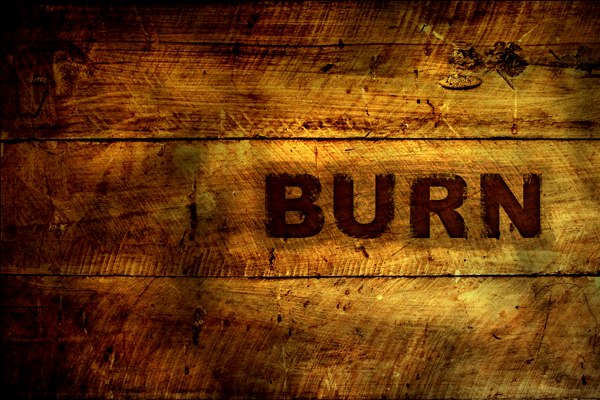
Burn Effect
I thought that this would be useful because it could, if used in the right way, be able show burn marks from rockets in the "share a Coke with the Universe" billboard design.


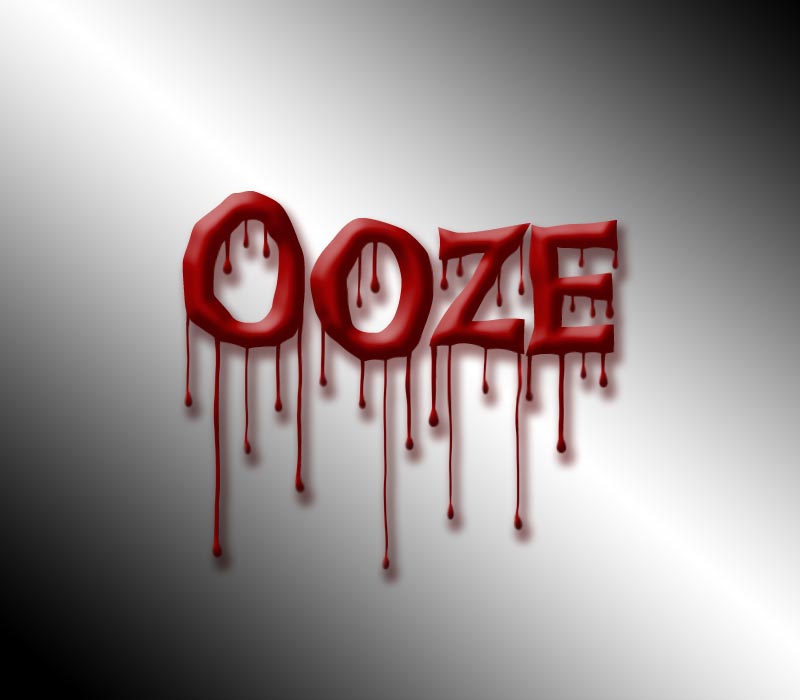
Ooze Effect
I thought that this would be a great edition to one of my Google logo because I could change it from red to a blue kind of see through colour so that it looks like "Google is sweating" then at the end of the sweat beads I would have them turn into athletes doing sports at the Olympics.
http://photoshop-dragon.com/Tutorials/Text_Effects/Images/Bloody_Text/final.jpg


Basketball Player with liquid effect
Same kind of concept as the Ooze picture.
http://creativefan.com/files/2010/10/tutorial-2-500x369.jpg


Sunday, March 4, 2012

Photoshop ideas for my Google page


Today I was able to come up with some ideas for my Google Homepage that will be on display during the London Olympic Games this year. My ideas included;


  1. A picture of the London mascot doing canoeing and his large round eye ball takes the place of the first "O".
  2. Use the Olympic rings by incorporating them into the logo by placing the first two rings over the two "O's". By doing this you have one left over on the top row. So I made it the top of the second "g" and added the bottom part using half a ring.
  3. I made the first "O" into the London Underground symbol, the second "O" into the clock face of big ben and the "l" into a red telephone booth.
  4. I just left the face of Big Ben in this one. But I stretched the Yellow "O" so that it fits perfectly around the clock face.
· Design Ideas: Have the London Olympics mascot canoeing and have his head as an "O"
· Colour Ideas: Keep within the kinds of colours on the Google logo. Like reds, blues, greens and yellows.
· Fonts: I would leave a majority of the Google font that I made where it is so that it is simple and effective.
· Photoshop Techniques: Use the Magic Wand Tool and the Magic Select Tool to select the background of the canoeing picture so that I can get rid of it so that you can still see all the Google logo.


· Design Ideas: Use the first two rigs of the Olympic rings as 'O's" and the third as the start of the "G".
· Colour Ideas: Change the top row of rings so that they match up with the colour of the letter that they are replacing. Then the two on the bottom stay black so that the eyes aren't distracted.
· Fonts: I would use the existing Google font that I have made and then use the top row of the Olympic rings with that.
· Photoshop Techniques: I would need the paint tool so that I can add on the extra part on the right hand ring to turn it into a "G".


  •        
·Design Ideas: Use Big Bens clock face as an "O", the London Undergroundsymbol as an "O" and a red telephone box as an "L".
·Colour Ideas: Keep the colour scheme very simple with only blue and red letters and make the pictures fit into this scheme as well.
·Fonts: Keep both "G's" and the "E" and then use iconic thing from London to improvise to make the rest of the letters.
·Photoshop Techniques: I would use the Palette Knife so it gives it a cartoon like effect so that it looks better. The Magic Wand Tool and the Magic Select Tool to select the background and delete it.


· Design Ideas: Use Big Bens clock face as an "O" and then stretch the "O" so that it covers the whole outside of the clock face and is almost a circle.
· Colour Ideas: leave the Google colours alone but have subtle colours from big ben in the background. It is good Big Ben isn't bright because it would then become to distracting.
· Fonts: Leave the Google font as it is but stretch the "O".
· Photoshop Techniques: The transform tool so that I can stretch the "O" and the Palette Knife.


Photoshop ideas for my Coke Billboard

 Today I started drafting up what I might possibly do for my share a coke billboard. My ideas were;


  1. Have a picture of the Pope with a Coke bottle and have “share a coke with the Pope”
  2. Have a guy surfing on a wave that is made of coke and have the “C” of Coca Cola incorporated into the natural shape of the wave.
  3. Find a picture of a rocket taking off and replace the rocket with a Coke bottle and have it say “share a Coke with the universe”


I made it look like the Pope is actually holding the Coke bottle up to show the crowd
·         Design Ideas: Have the Pope holding a Coke and have it say "share a Coke with Pope"
·         Colour Ideas: Make the colour of the font that I will put in the same colour as the Coca-Cola red so it effective and makes you want to have Coke because the colour red makes you feel hungry.
·         Fonts: I would get the Coke Font so that it looks just like the real fonts
·         Photoshop Techniques: I would use the Palette Knife so it gives it a cartoon like effect so that it looks better. The Magic Wand Tool and the Magic Select Tool to select the background of the Coke bottle so i can make it look like he is holding it.


The "C" is incorperated into the wave

· Design Ideas: Have a guy surfing on a wave that is made of coke and have the “C” of Coca Cola incorporated into the natural shape of the wave.
· Colour Ideas: Change the colour of the water so that it is roughly the same colour as Coke.
· Fonts: I would get the actual Coca-Cola logo of Google so that it is 100% correct.
· Photoshop Techniques: Maybe have sun faint sun rays sparkling off of the water.


Each bottle represents one of the rockets on a space shuttle


  • Design Ideas: Find a picture of a rocket taking off and replace the rocket with a Coke bottle and have it say “share a Coke with the universe”
  • Colour Ideas: Change the colour of the space shuttle to a red kind of colour so it is in keeping with the coke colours.
  • Fonts: Get the "share a coke" logo off the internet so it is genuine. Then find a space kind of font for the "universe" or get the actual font.
  • Photoshop Techniques: Find some good pictures of some burn effects and put realistic burn effects on the bottom of the rockets.

Thursday, March 1, 2012

Making my own Google Logo


In ICT we learnt how to make an almost identical copy of the normal Google writing so that we can use it for our assignment.  To do this we followed an online tutorial and we started out with selecting the new times roman font and typed “Google” then we changed the colours to match the real thing. We added effects such as and adding a drop shadow and an inner bevel. All of these skills combined really brought the image to life and look almost identical as the real thing.


The top one is my image and the one on the bottom is Google’s.

Now that we had done this we could now use individual letters for our assignment.